


Setting up your Fitbit is straightforward and allows you to track your fitness goals effectively. In this guide, we’ll walk you through each step to ensure your Fitbit is ready to help you stay active and healthy. Follow along to get the most out of your new gadget.
Fitbit Benefits
A Fitbit is a wearable fitness tracker that monitors your daily activities, such as steps taken, heart rate, and sleep patterns. It’s designed to help you stay motivated and achieve your fitness goals by providing real-time data and insights. Whether you’re a fitness enthusiast or just starting your wellness journey, a Fitbit can be a valuable tool to keep you on track.
First-Time Setup
Setting up your Fitbit for the first time is simple. Follow these steps to get started:
- Download the Fitbit app: Available on both iOS and Android, the app is essential for syncing your Fitbit with your smartphone.
- Create an account: Open the app and sign up for a Fitbit account using your email address.
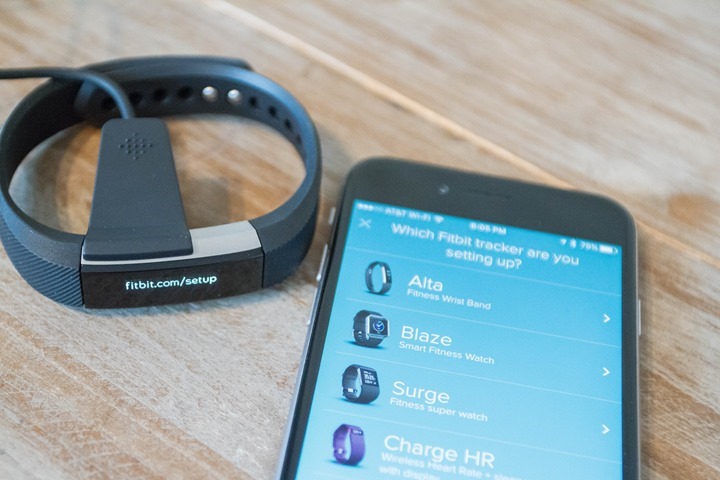
- Pair your Fitbit: Turn on Bluetooth on your phone, select your Fitbit model in the app, and follow the on-screen instructions to pair the devices.
- Customize your settings: Set your fitness goals, personal information, and notification preferences within the app.
Smartphone Sync
Syncing your Fitbit with your smartphone ensures that your activity data is up-to-date. Here’s how to do it:
- Open the Fitbit app on your smartphone.
- Ensure Bluetooth is enabled on your phone.
- Tap on the device icon in the top left corner of the app.
- Select “Sync Now” to update your Fitbit data.
Regular syncing allows you to track your progress and make the most of your Fitbit’s features.
Troubleshooting Common Setup Issues
If you encounter issues during setup, try these Fitbit troubleshooting tips:
- Restart your Fitbit: Hold the button on your Fitbit for 10 seconds until you see the Fitbit logo.
- Check Bluetooth settings: Ensure Bluetooth is enabled and your Fitbit is within range of your smartphone.
- Update the Fitbit app: Make sure you have the latest version of the app installed on your phone.
- Re-pair your devices: If syncing fails, try unpairing and then re-pairing your Fitbit with your phone.
Battery Life Maximization
To extend your Fitbit’s battery life, consider these tips:
- Reduce the brightness of your Fitbit’s display.
- Turn off notifications you don’t need.
- Use a simple clock face instead of an animated one.
- Sync your Fitbit less frequently if possible.
By managing these settings, you can enjoy longer battery life and uninterrupted tracking.
Frequently Asked Questions
How do I reset my Fitbit to factory settings?
How do I reset my Fitbit to factory settings?
To reset your Fitbit, go to the settings menu on your device, select “About,” and then choose “Factory Reset.” This will erase all data and settings, returning your Fitbit to its original state.
Can I use my Fitbit without a smartphone?
While a smartphone enhances the Fitbit experience, you can still use your Fitbit to track basic activities like steps and heart rate without one. However, syncing and accessing detailed data will require the Fitbit app on a smartphone or computer.
How do I update my Fitbit’s firmware?
To update your Fitbit’s firmware, open the Fitbit app, tap on the device icon, and check for updates. If an update is available, follow the on-screen instructions to install it.
What should I do if my Fitbit won’t charge?
If your Fitbit isn’t charging, try cleaning the charging contacts on both the device and the charger. Ensure the charger is properly connected and plugged into a working power source. If the issue persists, consider contacting Fitbit support.
Ready to upgrade? Try Gadget Salvation
As always, if you’re thinking about upgrading your gadgets, consider selling your old ones with Gadget Salvation. Our platform offers a seamless process for selling pre-owned technology easily and conveniently. Our customers enjoy benefits like free shipping, quick payments, and diligent updates throughout the process. Plus, by reselling your gadgets, you contribute to reducing electronic waste and promoting sustainability. Join us in giving your gadgets a second chance while making a positive impact on the environment.