
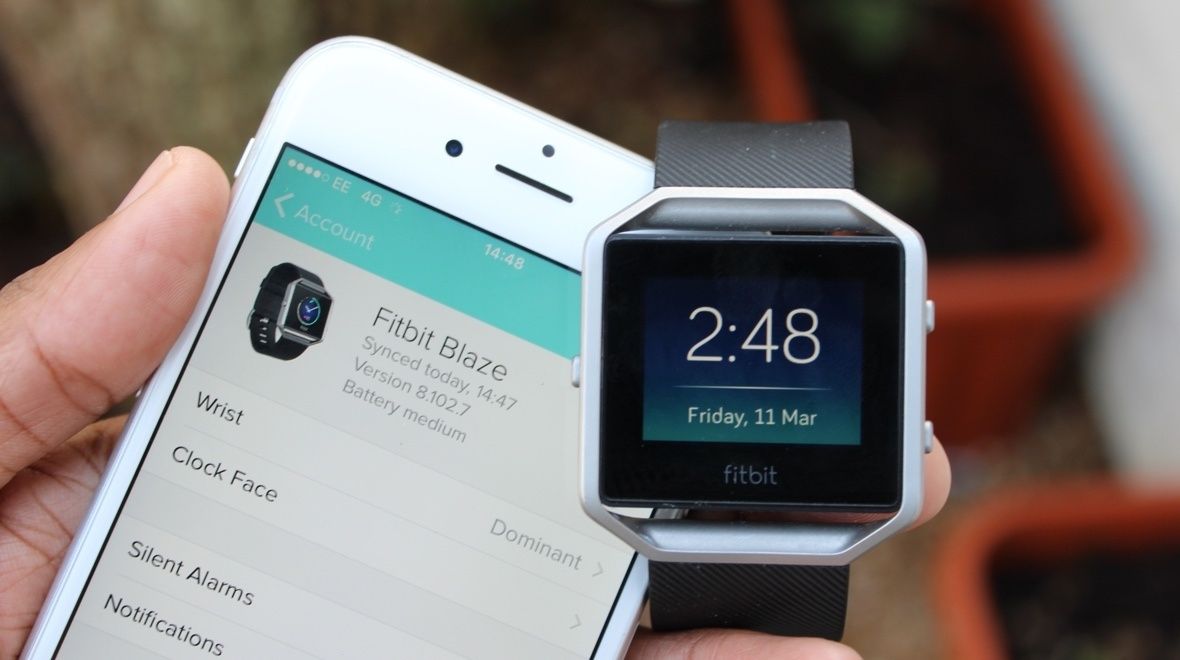


Fitbits are generally low-maintenance devices that only require regular cleaning and software updates. However, like any other device, they do encounter performance issues. Still, most of these problems can generally be fixed through simple troubleshooting.
Here are three of the most common Fitbit problems and the easiest ways to fix them.
Fitbit Doesn’t Sync
When you create a Fitbit account, the device is supposed to sync with your dashboard. If you set it up correctly, the data collected by your tracker should sync with your phone, tablet, or computer. If your tracker won’t synchronize, it may be due to connectivity issues, app settings, or compatibility errors.
Before you attempt troubleshooting, verify the following:
- You are using a supported device with the latest version of
the Fitbit app installed. - The device has wi-fi or cellular data connection.
- The synced device software is up to date.
- Bluetooth is on. If using more than one device to sync, turn
off Bluetooth on other nearby devices. - Fitbit battery isn’t critically low.
- Firmware on the Fitbit device is up to date.
If everything is in order, yet the Fitbit device still won’t sync, try these steps:
- Force quit the Fitbit app.
- Turn the Bluetooth off and on.
- Open the app again.
- Sync still fails? Restart the connected device.
- Still not syncing? Uninstall and reinstall the Fitbit app.
- If syncing still stops, use another device to log into your Fitbit account and attempt to sync.
- If syncing still fails, remove all other Fitbit devices from your account, then sync.
- If all these steps fail, contact Customer Support.
Firmware Update Fails
Issues with updates, where a firmware update might stop and fail, are another common problem. While resetting the device to factory settings seems logical, don’t do so unless directed by Fitbit Customer Support. So, what should you do? Follow these troubleshooting steps:
- Turn the Fitbit device off and on again.
- Retry the update.
- If the update still fails, restart your connected device.
- If step 3 does not work, log in to your Fitbit account on a different device and retry the update.
- If none of these work, contact Customer Support.
Fitbit Doesn’t Send Alerts
Your Fitbit is supposed to send alerts regularly. It vibrates when you hit a step goal, when you fail to meet your hourly goal, and whenever you set an alarm. But if it does not do that, try the following:
- Check battery level. If it’s critically low, charge your device.
- Test the vibration motor by connecting the device to its charging cable.
- Use the stopwatch on the Timer app and tap the play icon to check if the vibration motor is working.
- If it is, check the app settings and ensure the “Always Vibrate” option is turned on.
Bottom Line
There is no reason to sell your gadget because Fitbit does not sync or connect to it. Try troubleshooting by following the steps above to see if that addresses the issue. But if you do decide to sell, Gadget Salvation is here to help you accomplish just that!

Cesar is a Product Manager at Gadget Salvation, a leader in the refurbished electronics industry. An avid technology enthusiast, he’s always on top of the latest tech trends and applies that knowledge to drive product innovation.