How to Assess Your Laptop's Condition for an Accurate Quote
A walkthrough of the defects that actually change your laptop's trade-in category, so the quote you get matches the machine you send in.
In this article
A buyback quote isn't a negotiation. It's a lookup. You select a condition category, the pricing engine returns the number tied to that category, and an inspector later confirms whether you selected correctly. Nearly every gap between the quote on screen and the money in your account is the gap between the category you picked and the category your laptop actually belongs to.
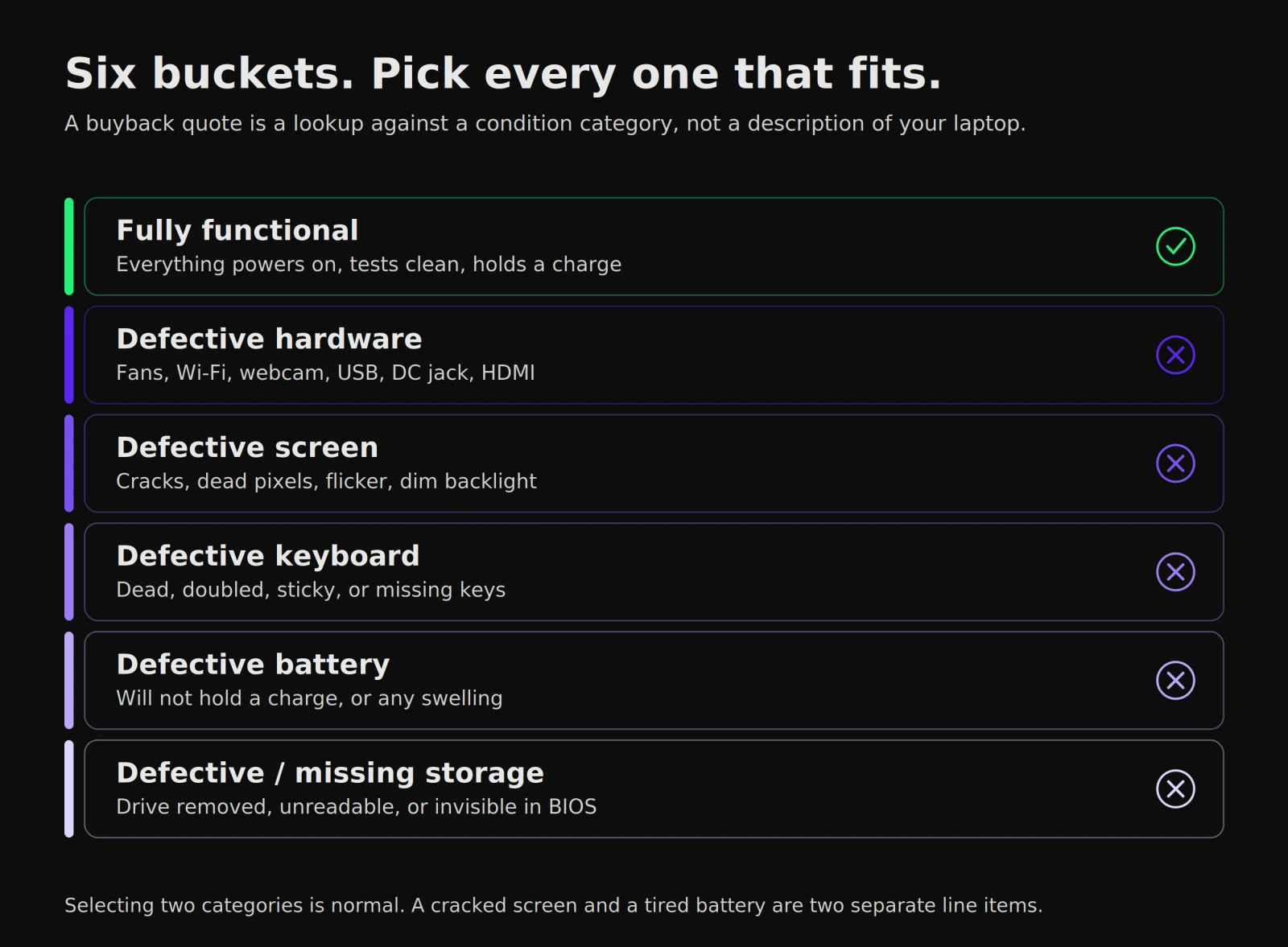
There are six of them: fully functional, defective hardware, defective screen, defective keyboard, defective battery, and defective or missing storage. The good news is that almost all of them map to something you can confirm yourself, in about five minutes, with the laptop open in front of you.
Why the category matters more than the description
When you write "the fan is loud and the battery is kind of shot" into a quote form, that sentence doesn't set your price. It gets read, translated into categories, and priced from those. Skipping that translation yourself is where quotes go wrong in both directions: understate the damage and the offer gets revised after inspection, overstate it and you leave money on the table for a laptop that was fine.
Select every category that applies rather than the single worst one. A cracked screen and a battery that won't hold a charge are two separate line items, and an accurate quote depends on both being reported.
Run the five-minute pass first
Work through the laptop in a fixed order so you don't miss anything. Each step below maps to a category you may need to select.
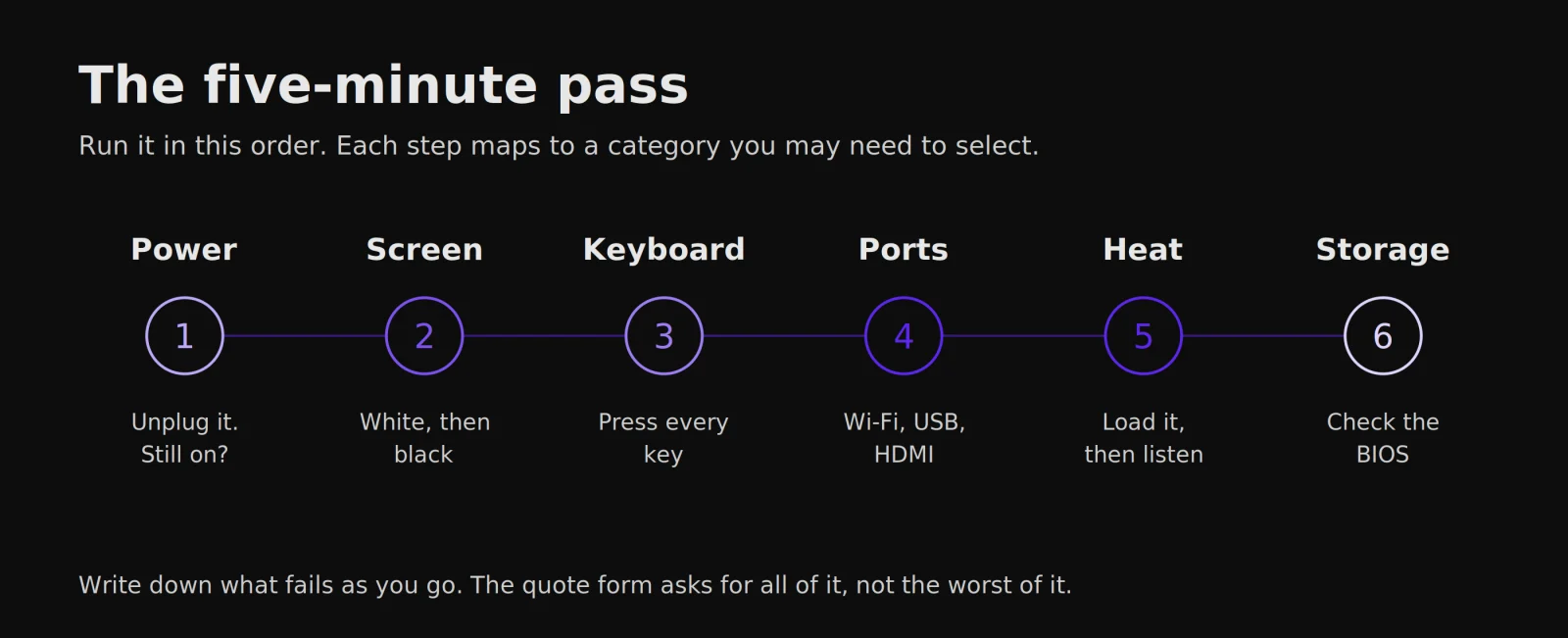
- Power. Charge it, unplug it, and leave it running for a few minutes. A laptop that dies the instant the cable comes out has a battery problem, not a mystery.
- Screen. Open a plain white image full-screen in a dim room, then a plain black one.
- Keyboard. Open a text editor and press every key, modifiers included.
- Ports and radios. Wi-Fi, webcam, every USB port, HDMI, and the charging jack.
- Heat. Ten minutes of real load, then listen to the fans at idle.
- Storage. Confirm the drive appears in the BIOS or UEFI menu, not just in the operating system.
What counts as defective hardware
This is the catch-all. Component failures that aren't the screen, keyboard, battery, or storage land here:
- A fan that's dead, grinding, rattling, or spinning at full speed without ever ramping down
- Wi-Fi that won't connect, or drops constantly on a network other devices hold fine
- A webcam that shows a black frame or isn't detected by the system at all
- USB ports that won't read a flash drive or charge a phone
- A DC jack that only charges when the cable is held at an angle
- HDMI or USB-C video output that shows no signal, or a distorted picture on a known-good display
Test one variable at a time. A USB drive that fails in one port and works in the other three points at the port. A drive that fails in all four points at the drive. Same logic for video: swap the cable and the display before you conclude the laptop is at fault.
Let the manufacturer's diagnostics do the arguing
Every major vendor ships a hardware test that runs before the operating system loads, which is exactly what you want when you're trying to separate a driver problem from a dead part. On most Dell machines, tap F12 at power-on and choose Diagnostics (Dell Support). On HP, press Esc at power-on, then F2 for HP PC Hardware Diagnostics (HP Support). Lenovo exposes the same thing through Lenovo Vantage and the UEFI menu (Lenovo Support). On an Apple silicon Mac, hold the power button until startup options appear, then press Command-D for Apple Diagnostics; on an Intel Mac, hold D at startup.
How to tell if the screen is actually defective
Dead pixels, stuck pixels, flicker, cracks, and dim backlighting are their own category, not folded into general hardware.
Fill the screen with pure white in a dim room. Dead pixels show as small black dots that stay put; stuck pixels show as fixed red, green, or blue dots. Then switch to pure black, which is where backlight bleed and bright stuck pixels become obvious. If brightness or color shifts as you tilt the lid, that's usually a loose display cable rather than a failed panel, but it belongs in the defective screen category either way.
On a touchscreen, run a finger along every edge of the glass. A crack you can barely see can still leave a dead strip of touch input, and that counts even when the picture is perfect.
How to tell if the keyboard is defective
Open a text editor and press every key, including Fn, both Ctrl and Alt keys, the arrow cluster, and the number row. You're watching for three failures: a key that doesn't register, a key that registers twice from one press, and a key that feels loose or sits lower than its neighbors.
Spilled liquid belongs here too, even if the machine still boots and even if the keys eventually unstick. So does a missing keycap. An external USB keyboard working perfectly doesn't move the laptop back to fully functional, because the built-in keyboard is the part being priced.
How to read a battery report
Don't guess from how long it lasts on a charge. Both operating systems will tell you the number.
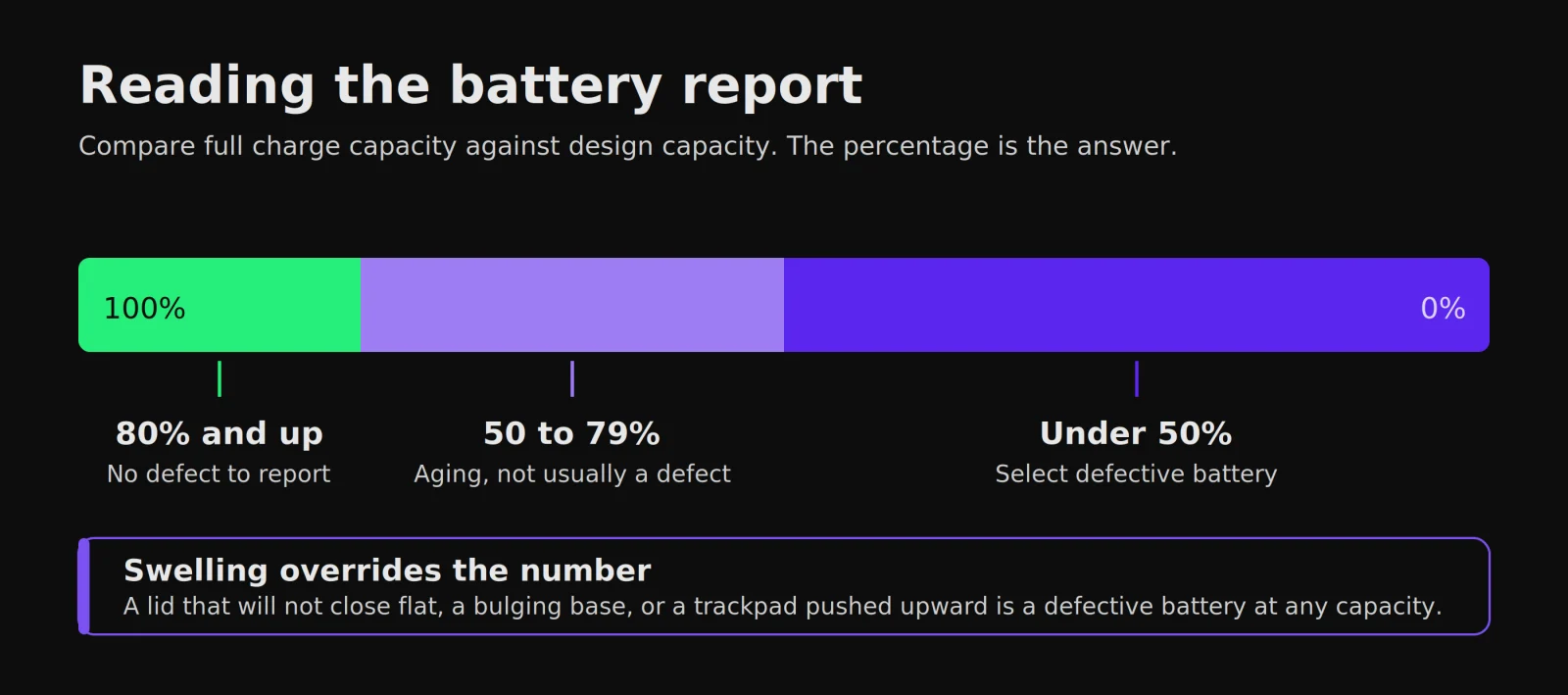
On Windows, open Command Prompt and run powercfg /batteryreport. Windows writes an HTML file to your user folder listing design capacity against full charge capacity, along with the cycle count (Microsoft's powercfg documentation). Divide full charge capacity by design capacity and you have the battery's remaining health as a percentage.
On a Mac, open System Settings, then Battery, and click the info button beside Battery Health. macOS reports condition as Normal or Service Recommended, and the cycle count lives in System Information under Power. Apple rates recent Mac notebook batteries to hold roughly 80 percent of their original capacity through 1,000 charge cycles (Apple), so a machine well past that is expected to read low.
If you want a hands-on read on how much runtime is actually left rather than what the report claims, our guide on how to measure your laptop's battery life walks through timing a real discharge.
A swollen battery changes how the laptop ships
If the lid no longer closes flat, the base bulges, or the trackpad has been pushed upward, stop charging the laptop and stop using it. The Consumer Product Safety Commission treats swelling and overheating as failure warning signs on lithium-ion cells (CPSC), and damaged or defective lithium batteries are forbidden from air transport under FAA rules (FAA PackSafe). Flag it when you request the quote so shipping can be arranged correctly rather than discovered at a sorting facility.
Missing or undetected storage
This category covers three situations: a drive that doesn't appear in the operating system or the BIOS at all, a drive that boots but throws read and write errors, and a laptop sold with the drive already removed.
Check the BIOS or UEFI menu before you assume the drive is dead. A drive that's invisible to Windows but listed in BIOS usually has a driver, partition, or cable problem rather than a hardware failure, and that changes which category applies. On machines with both an M.2 slot and a SATA bay, confirm which one is actually populated before reporting anything missing.
Pulled drives are routine on retired business and school fleet devices, where storage is removed for data security before the hardware moves on. If you're processing units in volume, our school buyback and corporate buyback programs are built around exactly that condition.
For a laptop you're still using, sign out of your accounts before you ship: deactivate Find My, remove the device from your Apple or Microsoft account, and run a factory reset. That's a separate step from condition reporting, but it's the one people forget.
Common issues and the category they belong to
| What you're seeing | Category to select | Quick check |
|---|---|---|
| Fan grinding, rattling, or never idling | Defective hardware | Ten minutes of load, then listen at idle |
| Wi-Fi drops or won't connect | Defective hardware | Try a second network and a USB adapter |
| Webcam black or not detected | Defective hardware | Camera app, then Device Manager or System Report |
| A USB port won't read a drive | Defective hardware | Test the same drive in every port |
| Charges only at a certain cable angle | Defective hardware | Move the cable while watching the charge icon |
| HDMI blank or distorted | Defective hardware | Swap the cable, then the display |
| Cracks, flicker, dimming, or dead pixels | Defective screen | Full-screen white, then full-screen black |
| Keys dead, doubled, sticky, or missing | Defective keyboard | Type every key in a text editor |
| Won't hold a charge, or any swelling | Defective battery | Full charge capacity against design capacity |
| Drive missing, unreadable, or removed | Defective / missing storage | Look in BIOS or UEFI, not just the OS |
| Scratches, dents, worn palm rest | Cosmetic, reported separately | Photograph it in daylight, lid open and closed |
Gaming laptops fail in their own way
The category logic doesn't change, but the failure pattern does. High-wattage machines run their fans hard for years, so check thermals more carefully than you would on an ultrabook. Run a game or a stress test for ten minutes and listen for grinding or a fan that never ramps down once the load stops. Worn keycaps on WASD, a hinge that has started to lift the bottom panel, and dried thermal paste showing up as thermal throttling are all common on trade-ins.
Visual artifacts under load, such as flickering textures or colored blocks that vanish at the desktop, point at the GPU rather than the screen. That belongs under defective hardware, not defective screen. If you're preparing one to trade in, our page for selling a gaming laptop shows which condition details the quote tool asks for.
What an accurate condition report is worth
Resale value on a used laptop is set by three things: the model, the condition categories you select, and how quickly you act, since hardware depreciates every month it sits in a drawer. At Gadget Salvation, the quote is built from the model plus the categories you report, which means the fastest route to a payment that matches the number on screen is to select every category that applies the first time. A defect disclosed up front is priced into the offer. The same defect found at inspection turns into a revised offer and a longer wait.
Even a laptop that fails in several categories is worth submitting. Working parts get harvested, and reuse keeps the machine out of the waste stream, which the EPA puts ahead of recycling in its own hierarchy for electronics (EPA). Start with our sell your laptop page, or read how it works to see what happens after you submit. If you'd rather compare your options first, our guide on where to sell used electronics lays out the alternatives.
Before you request a quote
- Run the five-minute pass and write down every failure as you find it
- Pull the battery report and note the capacity percentage
- Confirm the storage drive in BIOS, and note its size if it's there
- Photograph any cosmetic damage in daylight, lid open and closed
- Select every category that applies, not just the worst one
- Sign out of your accounts and factory reset the machine before it ships
Frequently asked questions
How do I check my laptop's battery health before selling it?
Use your operating system's built-in report. On Windows, run powercfg /batteryreport in Command Prompt and compare full charge capacity against design capacity. On macOS, open System Settings, then Battery, and check Battery Health for a Normal or Service Recommended reading. A battery well below its rated capacity, or one flagged for service, should be reported as defective when you request a quote.
What if I'm not sure whether the problem is hardware or software?
Run the manufacturer's pre-boot diagnostics, or boot from a USB drive or the recovery environment. If the fault still appears outside your normal operating system, it's almost certainly hardware. If it disappears, a driver reinstall or a clean OS install may fix it before you need to report anything at all.
Does a laptop with a missing hard drive still get a quote?
Yes. It falls under defective or missing storage rather than fully functional. This is routine on retired business and school laptops where the drive was pulled for data security. Report it as missing and you'll get an accurate quote instead of one that assumes a working drive and gets revised later.
Will a loud fan lower my laptop's category even if everything else works?
Yes. A fan that grinds, doesn't spin, or runs at full speed at idle counts as defective hardware regardless of how the rest of the machine performs. It's one of the most common findings on older gaming laptops that ran hot for years.
Should I report cosmetic damage separately from functional defects?
Yes, wherever the form allows it. Scratches, dents, and a worn keyboard deck affect grading differently than a defect that stops a component from working. Reporting both, rather than only the more obvious one, gets you a quote closer to what the laptop will actually appraise at.
Is it safe to ship a laptop with a swollen battery?
Not without flagging it first. FAA rules forbid damaged or defective lithium batteries from air transport, so a swollen pack changes how the device has to be shipped. Stop charging and using the laptop, don't press on the bulge, and note the swelling when you request your quote so shipping can be arranged the right way.
Do I need to erase my data before sending the laptop in?
Yes, and do it before it leaves your hands. Sign out of your accounts, turn off Find My or device locks, remove the machine from your Apple or Microsoft account, and run a factory reset. A device still tied to an active account can stall processing even when its physical condition is exactly as reported.