Resources · Laptop Guide · Google
Find your Google's model number.
There are three ways to locate your Google Chromebook or Pixelbook's model number. Pick whichever is easiest — then get an instant trade-in quote in seconds.
Method 1
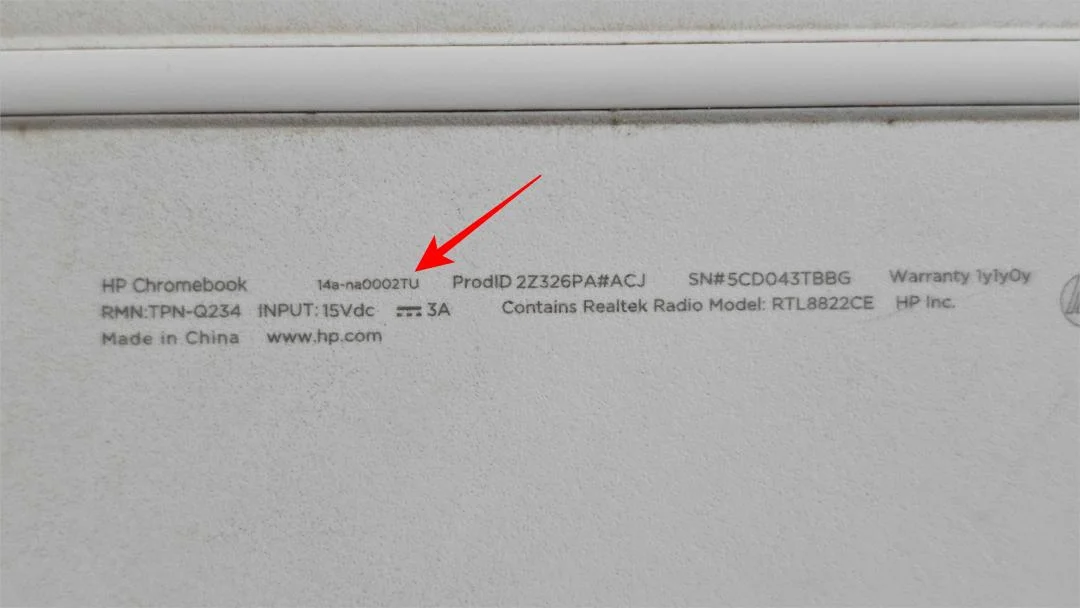
Check the bottom panel.
The quickest method — the model number is printed on the underside of your Google laptop.
-
1
Flip your laptop over
Power off and close the lid, then turn the laptop upside down on a soft surface.
-
2
Read the printed label
Find the line marked Model or Product — for example Pixelbook Go GA00122.
Method 2
Check About ChromeOS.
Label worn out or unreadable? Chrome OS lists your device details right in Settings.
-
1
Open Settings → About ChromeOS
Click the time in the bottom-right corner, open Settings, then choose About ChromeOS at the bottom of the menu.
-
2
Open Additional details
Select Additional details to see your device name and hardware information — everything we need for a quote.
Method 3
Use the System page.
For the most detail, Chrome OS exposes a full hardware report at a built-in address.
-
1
Go to chrome://system
Open a Chrome tab, type chrome://system into the address bar, and press Enter.
-
2
Find hardware_class
Look for the hardware_class row — it identifies your exact Chromebook model and board.
Still can't find it?
No problem. Contact our team or text us and we'll help you identify your Google laptop and get you an accurate quote.
Found your model?
Get paid for your Google.
Free shipping. Fast payment. No pressure.
Get Your Free Quote