Resources · Laptop Guide · Lenovo
Find your Lenovo's model number.
There are two ways to locate your Lenovo laptop's model number. Pick whichever is easiest — then get an instant trade-in quote in seconds.
Method 1
Check the bottom panel.
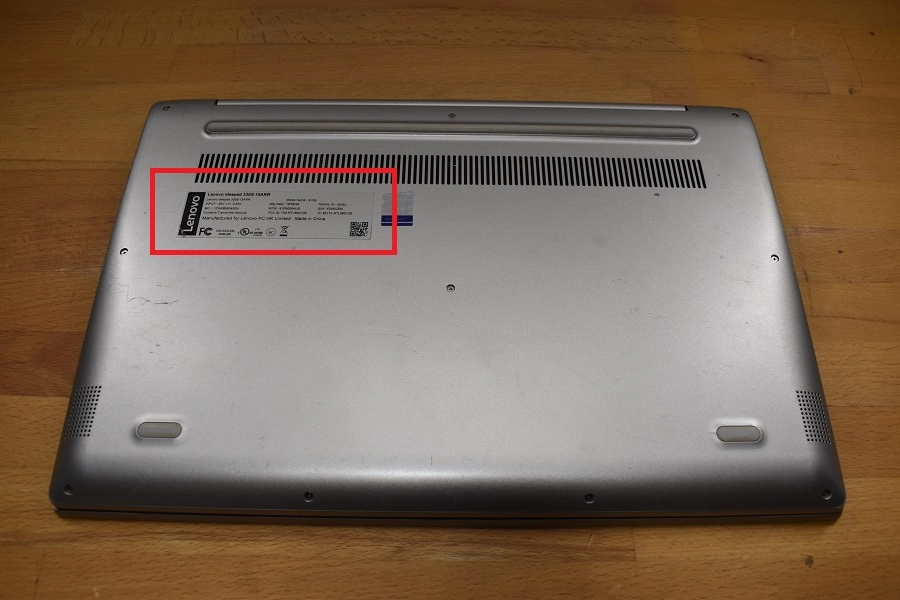
The quickest method — the model number is printed on a label on the underside of your Lenovo laptop.
-
1
Flip your laptop over
Power off and close the lid, then turn the laptop upside down on a soft surface.
-
2
Read the printed label
Find the line marked Model or Type — for example ThinkPad X1 Carbon.

Method 2
Use Lenovo Service Bridge.
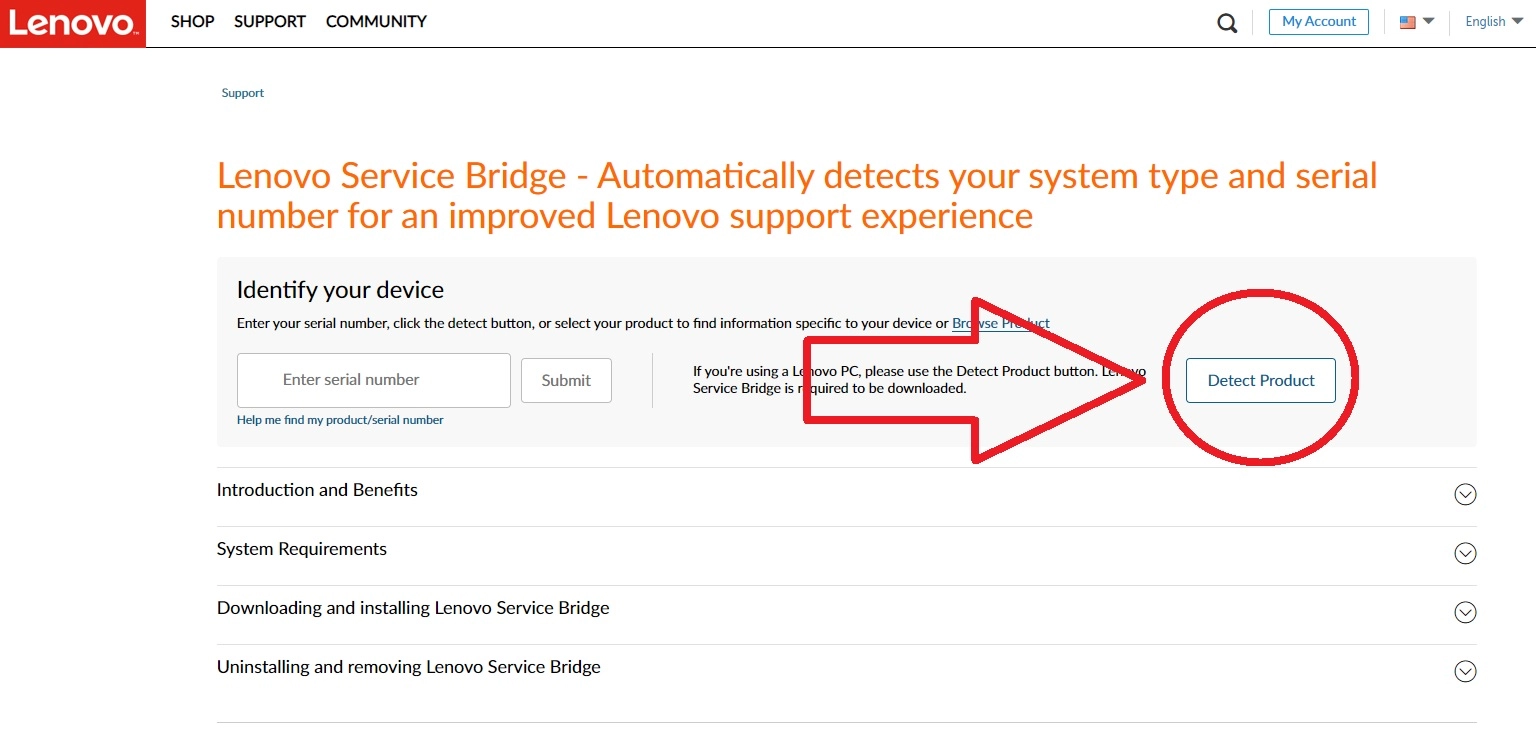
Lenovo's website can detect your laptop's model number automatically — no flipping or squinting required.
-
1
Open Lenovo Service Bridge
Visit the Lenovo Service Bridge page and follow the prompts to run the detection tool.
-
2
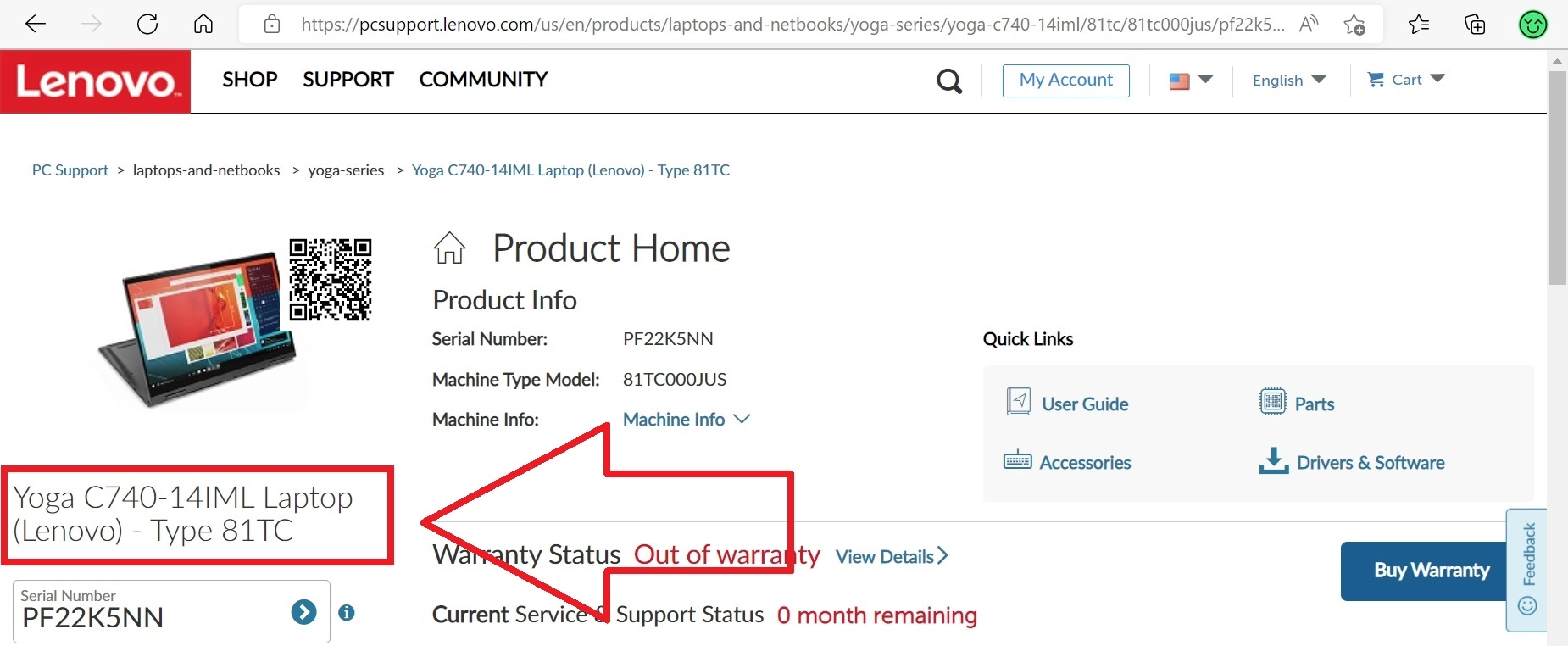
Read the detected results
Once it finishes, your system type and serial number are displayed automatically — that's everything we need for a quote.
Still can't find it?
No problem. Contact our team or text us and we'll help you identify your Lenovo laptop and get you an accurate quote.
Found your model?
Get paid for your Lenovo.
Free shipping. Fast payment. No pressure.
Get Your Free Quote